



INTRODUCTION
This guide shows how to play on some SS14 servers currently (playss14 servers specifically), if you have any questions, feel free to ask for help using this link: https://discord.com/channels/1276640157 ... 5600818216 to open an authentication ticket.
Please remember to read all the text carefully, and go through step by step. After you are done with your operating system's section, please open the "HUB CONFIGURATION" page. This is applicable for all platforms.
P.S. You only need to follow the instructions for the operating system that you have, please do not follow multiple different operating systems' guides.
WINDOWS:
1. Set your password for your SS14 account on the funky forums
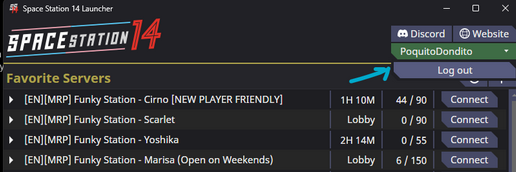
- Log out of your account on the launcher and close it if it is still open:
- Screenshot 2026-06-06 162917.png (77.94 KiB) Viewed 15126 times
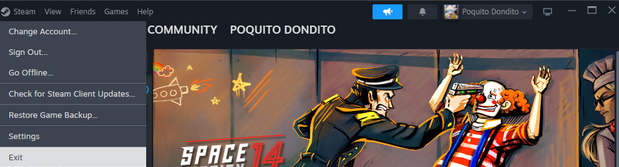
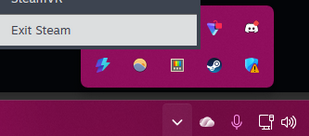
- Close the launcher and exit steam or end task for it. You may use any of the three methods below (either a, b, or c. There is no need to use all three):
a. Here is how to do it in the client, just left click on steam, look at the bottom, and press exit:b. Here is how to do it in your system tray, just open the arrow, right click on the steam icon, and press exit steam:- Screenshot 2026-06-06 163044.png (161.42 KiB) Viewed 15126 times
c. Here is how you do it in task manager, just open task manager, right click on whatever has the steam logo in the Apps section, and press end task:- Screenshot 2026-06-06 163214.png (32.88 KiB) Viewed 15126 times
- Screenshot 2026-06-06 163233.png (34 KiB) Viewed 15126 times
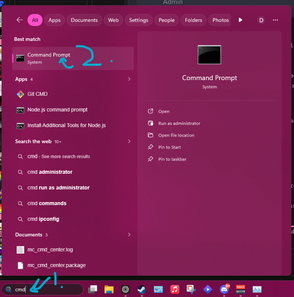
- Open command prompt by typing in cmd (or command prompt) in the search bar, and clicking on command prompt):
- Screenshot 2026-06-06 163242.png (107.8 KiB) Viewed 15126 times
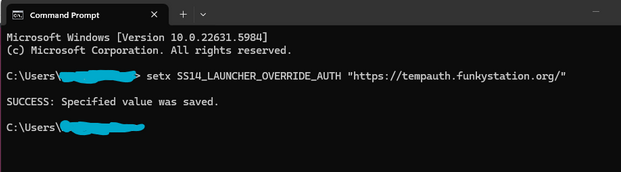
- Type
in that cmd prompt (powershell works as well). You should get SUCCESS: Specified value was saved as seen below:
Code: Select all
setx SS14_LAUNCHER_OVERRIDE_AUTH "https://auth.playss14.com/"- Screenshot 2026-06-06 163255.png (32.34 KiB) Viewed 15126 times
- Reopen Steam
- Relaunch SS14
- Log in with your password and your SS14 username.
- Should be everything, if you’re noticing something is wrong or there are other things not working feel free to open a ticket and we will try to help!

FLATPAK:
- Log out of your account on the launcher and close it if it is still open:
- Screenshot 2026-06-06 162917.png (77.94 KiB) Viewed 15126 times
- Close the launcher. You do not have to close steam for this next step.
- Open your terminal and input the following command:
Code: Select all
flatpak override --user --env=SS14_LAUNCHER_OVERRIDE_AUTH=https://auth.playss14.com/ - Relaunch SS14
- Log in with your password and your SS14 username.
- Should be everything, if you’re noticing something is wrong or there are other things not working feel free to open a ticket and we will try to help!
LINUX:
- Log out of your account on the launcher and close it if it is still open:
- Screenshot 2026-06-06 162917.png (77.94 KiB) Viewed 15126 times
- Close the launcher. Open Steam, and go to properties…
- Screenshot 2026-06-06 170609.png (39.5 KiB) Viewed 15126 times
- Enter this into the Launch options, close and run SS14:
Code: Select all
SS14_LAUNCHER_OVERRIDE_AUTH=https://auth.playss14.com/ %command%- Screenshot 2026-06-06 170616.png (41.24 KiB) Viewed 15126 times
- Relaunch SS14.
- Log in with your password and your SS14 username.
- Should be everything, if you’re noticing something is wrong or there are other things not working feel free to open a ticket and we will try to help!


MAC OS:
1. Log out of your account on the launcher and close it if it is still open:
- Screenshot 2026-06-06 162917.png (77.94 KiB) Viewed 15126 times
2. Close Steam by right clicking the application in the tray and clicking force quit.
3. Open your terminal.
4. Type:
Code: Select all
SS14_LAUNCHER_OVERRIDE_AUTH=https://auth.playss14.com/ open -a Steam %command%(On ventura and tahoe, users reported it only worked by deleting %command%)
5. Relaunch SS14.
6. Log in with the password you set from step 1 and your SS14 username as it appears in the Link Space Station Account section. We do not store your email on funkyauth servers, be sure to use the account username you chose.
7. Should be everything, if you’re noticing something is wrong or there are other things not working feel free to open a ticket and we will try to help!
HUB CONFIGURATION:
The commands we put in before are how your computer talks to the authentication servers, which is dependent on each operating system. This step shows how your launcher sees the list of servers (this is why you need to do both your operating system's steps and this step):
- Launch the SS14 launcher and input your username and password:
- Screenshot 2026-06-15 085833.png (44.82 KiB) Viewed 12666 times
- Go over to options:
- Screenshot 2026-06-15 090035.png (111.09 KiB) Viewed 12666 times
- Go down to Hub Settings:
- Screenshot 2026-06-15 090105.png (81.54 KiB) Viewed 12666 times
- We're going to add a new hub to our launcher, so go ahead and press the + button:
- Screenshot 2026-06-15 090129.png (16.14 KiB) Viewed 12666 times
- Just copy in the link, and you should be good to go once you've clicked done! (The arrows don't matter for adding a single hub like this):
Code: Select all
https://hub.playss14.com/- SS14.Launcher_ohYB0FGonM.png (19.11 KiB) Viewed 12565 times


Stay funky!
Poquito Dondito